

Just a note to let you know that the above program worked extremely well and I successfully recovered almost 3000 emails that I had accidentally
Overview
Features
How to Recover
More Information
Related Products
Why DataNumen Outlook Express Undelete?

#1 Recovery
Rate

10+ Million
Users

20+ Years of
Experience

100% Satisfaction
Guarantee
Our Customers' Testimonials

... Read more
Just a note to let you know that the above program worked extremely well and I successfully recovered almost 3000 emails that I had accidentally permanently deleted. I will not hesitate to recommend it to colleagues and friends.
Greg Harrison
SA Bias Industries Limited
I tried three other products before I found Advance Outlook Express Recovery. Two of the programs found all the messages, however, the messages had
I tried three other products before I found Advance Outlook Express Recovery. Two of the programs found all the messages, however, the messages had no data in the bodies. The third did not even find all of the existing email. The first attempt with Advance Outlook Express Recovery showed all files in the trial. I purchased the product and every message that I accessed was immediately recoverable. This is a fantastic product and is definitely worth the price.
Thank you.
Bill Hair
My Computer Guy
Rockwall, TX, USA
By the way, the products are excellent. I leave my thanks to the guys who developed so usefull tools.
They really solved my soul.
Best Regards
Morganite Brasil Ltda
São paulo, Brazil
I had a problem with 1.5GB outlool file, i was very tense but AODR solved my issue and helped me to recover all my data, Thanks A lot to
I had a problem with 1.5GB outlool file, i was very tense but AODR solved my issue and helped me to recover all my data, Thanks A lot to Datanumen.com Team who helped me in selection of right tool for my problem.
Maqbool Ahmed Rashid Ali KHAN
Est. Jeddah Saudi Arabia
Extremely Simple Interface
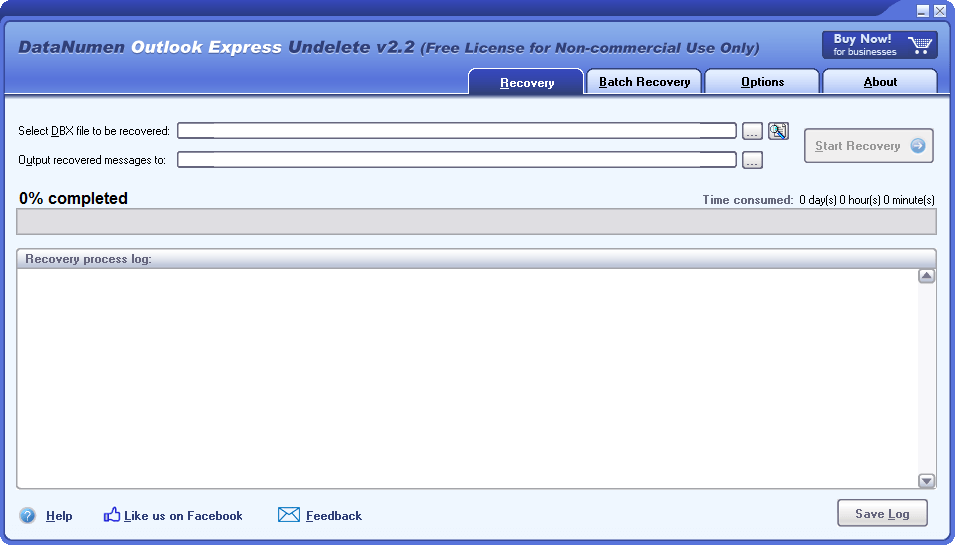
Recovery
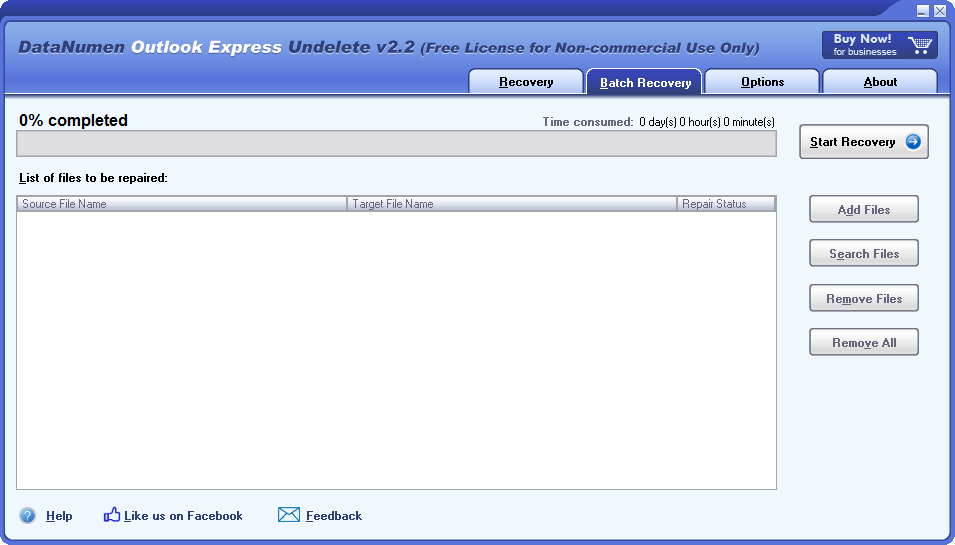
Batch Recovery
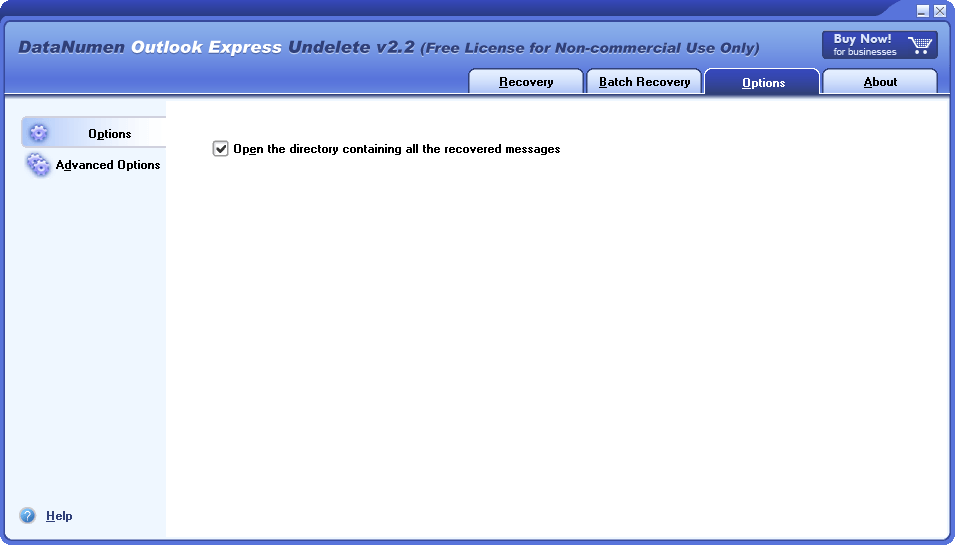
Options
Free Download20+ Years Of Experience
Buy Now100% Satisfaction Guarantee
Main Features
- Recover deleted emails in Microsoft Outlook Express 5/6 mail folders.
Free Download20+ Years Of Experience
Buy Now100% Satisfaction Guarantee
DataNumen Outlook Express Undelete: Recover Deleted Emails in Outlook Express
Find the dbx file corresponding to the mail folder where you delete your emails.
Start DataNumen Outlook Express Undelete.
Note: Before recovering deleted emails in a dbx file with DataNumen Outlook Express Undelete, please close Outlook Express and any other applications that may modify the dbx file.
Select the dbx file where the deleted emails are to be recovered:

You can input the dbx filename directly or click the  button to browse and select the file.
By default, DataNumen Outlook Express Undelete will output all the recovered emails in directory xxxx_recovered, where xxxx is the name of the corrupt dbx file. For example, for file Inbox.dbx , the default output directory will be Inbox_recovered . If you want to use another directory, then please select it accordingly:

You can input the directory name directly or click the button to browse and select the directory.
Click the  button, DataNumen Outlook Express Undelete will start recovering deleted mails from the selected dbx file.

will indicate the recovery progress.
After the recovery process, if deleted emails have been recovered from the dbx file successfully, you will see a message box like this:
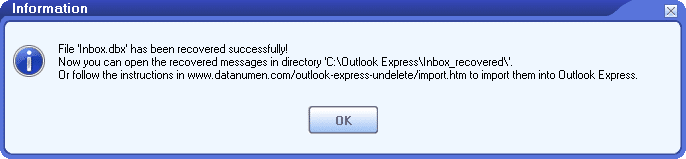
Now you can open a recovered message with Outlook Express by double-clicking the  icon of a .eml file in the output directory. Or import multiple messages into a mail folder in Outlook Express.
More Information


Related Products
DataNumen Exchange Recovery
Recover messages and other items from orphaned or damaged Microsoft Exchange offline storage files (.ost)
Details
DataNumen Outlook Express Repair
Recover emails from corrupt Outlook Express dbx and mbx files.
Details
 DataNumen Outlook Express Undelete